教學 5 - 行動裝置:iOS
要編譯 iOS 應用程式,我們需要 Xcode,它可以從 macOS App Store 免費下載。安裝 Xcode 後,從 Applications 啟動它,並接受 Xcode License Agreement。接下來,Xcode 會顯示哪些是內建元件,哪些是您可以下載的元件。選擇 iOS 旁邊的核取方塊(後面跟著目前的版本號碼),然後按一下「Download and Install」(下載並安裝)進行安裝。Xcode 將安裝系統元件,接著安裝 iOS 模擬器。
一旦我們安裝了 Xcode,我們就可以將我們的應用程式部署為 iOS 應用程式。
將應用程式部署到 iOS 的流程與部署為桌面應用程式的流程非常相似。首先,執行 create 指令,但這次我們指定要建立 iOS 應用程式:
(beeware-venv) $ briefcase create iOS

[helloworld] Generating application template...
Using app template: https://github.com/beeware/briefcase-iOS-Xcode-template.git, branch v0.3.18
...

[helloworld] Installing support package...
...

[helloworld] Installing application code...
Installing src/helloworld... done

[helloworld] Installing requirements...
...

[helloworld] Installing application resources...
...

[helloworld] Removing unneeded app content...
...

[helloworld] Created build/helloworld/ios/xcode
完成後,我們將擁有一個build/helloworld/ios/xcode目錄,其中包含 Xcode 專案以及應用程式所需的支援庫和應用程式程式碼。
然後,您可以使用briefcase build iOS來使用 Briefcase 來編譯您的應用程式:
(beeware-venv) $ briefcase build iOS

[helloworld] Updating app metadata...
Setting main module... done

[helloworld] Building Xcode project...
...
Building... done

[helloworld] Built build/helloworld/ios/xcode/build/Debug-iphonesimulator/Hello World.app
現在我們已經準備好使用briefcase run iOS來運行我們的應用程式。系統會提示您選擇要編譯的設備;如果您安裝了多個 iOS SDK
版本的模擬器,系統也可能會詢問您要定位哪個 iOS 版本。您顯示的選項可能與此輸出中顯示的選項不同 -
至少,設備清單可能會有所不同。就我們的目的而言,您選擇哪個模擬器並不重要。
(beeware-venv) $ briefcase run iOS

Select simulator device:

   1) iPad (10th generation)
   2) iPad Air (5th generation)
   3) iPad Pro (11-inch) (4th generation)
   4) iPad Pro (12.9-inch) (6th generation)
   5) iPad mini (6th generation)
   6) iPhone 14
   7) iPhone 14 Plus
   8) iPhone 14 Pro
   9) iPhone 14 Pro Max
   10) iPhone SE (3rd generation)

>  10

In the future, you could specify this device by running:

    $ briefcase run iOS -d "iPhone SE (3rd generation)::iOS 16.2"

or:

    $ briefcase run iOS -d 2614A2DD-574F-4C1F-9F1E-478F32DE282E

[helloworld] Starting app on an iPhone SE (3rd generation) running iOS 16.2 (device UDID 2614A2DD-574F-4C1F-9F1E-478F32DE282E)
Booting simulator... done
Opening simulator... done

[helloworld] Installing app...
Uninstalling any existing app version... done
Installing new app version... done

[helloworld] Starting app...
Launching app... done

[helloworld] Following simulator log output (type CTRL-C to stop log)...
===========================================================================
...
這將啟動 iOS 模擬器、安裝您的應用程式並啟動它。您應該會看到模擬器啟動,並最終打開您的 iOS 應用程式:
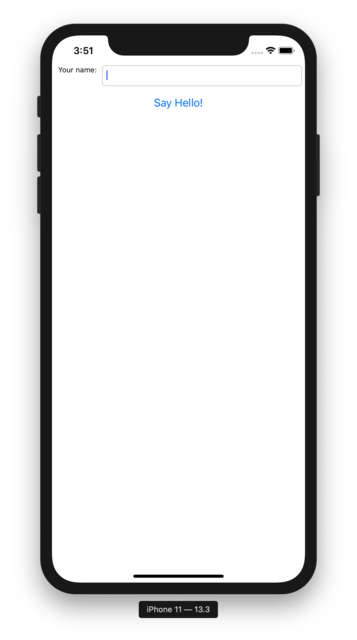 。
。
當應用程式執行時,您會在控制台看到一系列模擬器日誌輸出訊息。在終端機中輸入 Ctrl+C 將停止控制台中的訊息,但不會關閉模擬器。這樣您就可以測試新的變更,而無需重新啟動模擬器。
如果您事先知道要定位哪個 iOS 模擬器,則可以透過提供-d(或--device)選項來告訴 Briefcase
使用該模擬器。使用您在建立應用程式時選擇的設備名稱,運行:
$ briefcase run iOS -d "iPhone SE (3rd generation)"
如果您有多個可用的 iOS 版本,公事包將選擇最高的 iOS 版本;如果你想選擇一個特定的 iOS 版本,你可以告訴它使用該特定版本:
$ briefcase run iOS -d "iPhone SE (3rd generation)::iOS 15.5"
或者,您可以命名特定設備 UDID:
$ briefcase run iOS -d 2614A2DD-574F-4C1F-9F1E-478F32DE282E
下一步
我們現在已經在手機上安裝了應用程式!還有其他地方可以部署BeeWare應用程式嗎?請參考 教學 6 來找出答案…