教程 5 - 在移动设备上:iOS
编译 iOS 应用程序需要 Xcode,可从 macOS App Store 免费下载。当 Xcode 完成安装时,从“应用程序”打开它并接受 Xcode 许可协议。接下来,Xcode 会展示哪些模拟器运行时已内置,哪些可以下载。选择 iOS 模拟器运行时旁边的复选框,并点击“继续”来下载和安装它。
安装好 Xcode 与 iOS 模拟器后,我们就可以将应用程序作为 iOS 应用程序进行部署。
将应用程序部署到 iOS 的过程与部署桌面应用程序的过程非常相似。首先,运行 create 命令,但这次我们指定要创建一个 iOS 应用程序:
(beeware-venv) $ briefcase create iOS

[helloworld] Generating application template...
Using app template: https://github.com/beeware/briefcase-iOS-Xcode-template.git, branch v0.3.18
...

[helloworld] Installing support package...
...

[helloworld] Installing application code...
Installing src/helloworld... done

[helloworld] Installing requirements...
...

[helloworld] Installing application resources...
...

[helloworld] Removing unneeded app content...
...

[helloworld] Created build/helloworld/ios/xcode
完成此操作后,我们将拥有一个包含 Xcode 项目、支持库和应用程序所需应用程序代码的 build/helloworld/ios/xcode 目录。
然后,您可以使用 briefcase build iOS 来编译应用程序:
(beeware-venv) $ briefcase build iOS

[helloworld] Updating app metadata...
Setting main module... done

[helloworld] Building Xcode project...
...
Building... done

[helloworld] Built build/helloworld/ios/xcode/build/Debug-iphonesimulator/Hello World.app
现在我们可以使用 briefcase run iOS 运行应用程序了。Briefcase 会提示你选择要编译的设备;如果你安装了多个 iOS SDK
版本的模拟器,可能还会询问你要针对哪个 iOS 版本。所显示的选项可能与此输出中显示的选项不同,至少设备列表可能不同。就我们而言,选择哪个模拟器并不重要。
(beeware-venv) $ briefcase run iOS

Select simulator device:

   1) iPad (10th generation)
   2) iPad Air (5th generation)
   3) iPad Pro (11-inch) (4th generation)
   4) iPad Pro (12.9-inch) (6th generation)
   5) iPad mini (6th generation)
   6) iPhone 14
   7) iPhone 14 Plus
   8) iPhone 14 Pro
   9) iPhone 14 Pro Max
   10) iPhone SE (3rd generation)

>  10

In the future, you could specify this device by running:

    $ briefcase run iOS -d "iPhone SE (3rd generation)::iOS 16.2"

or:

    $ briefcase run iOS -d 2614A2DD-574F-4C1F-9F1E-478F32DE282E

[helloworld] Starting app on an iPhone SE (3rd generation) running iOS 16.2 (device UDID 2614A2DD-574F-4C1F-9F1E-478F32DE282E)
Booting simulator... done
Opening simulator... done

[helloworld] Installing app...
Uninstalling any existing app version... done
Installing new app version... done

[helloworld] Starting app...
Launching app... done

[helloworld] Following simulator log output (type CTRL-C to stop log)...
===========================================================================
...
这将启动 iOS 模拟器,安装你的应用程序并启动它。你应该能看到模拟器启动,并最终打开你的 iOS 应用程序:
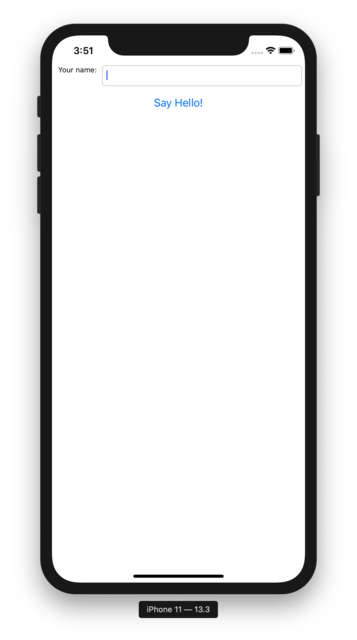 。
。
当应用程序运行时,您会在控制台中看到一系列模拟器输出信息。向命令行中按 Ctrl + C 会停止控制台中的信息,但不会关闭模拟器。这样,您无需重启模拟器,也能可以继续测试新更改。
如果事先知道要使用哪个 iOS 模拟器,可以通过提供 -d(或 --device)选项告诉 Briefcase
使用该模拟器。使用创建应用程序时选择的设备名称,运行:
$ briefcase run iOS -d "iPhone SE (3rd generation)"
如果你有多个 iOS 版本,Briefcase 会选择最高的 iOS 版本;如果你想选择某个 iOS 版本,你可以告诉它使用该特定版本:
$ briefcase run iOS -d "iPhone SE (3rd generation)::iOS 15.5"
或者,您也可以命名一个特定的设备 UDID:
$ briefcase run iOS -d 2614A2DD-574F-4C1F-9F1E-478F32DE282E
下一步
我们现在已经在手机上安装了应用程序!还有其他地方可以部署 BeeWare 应用程序吗?转到教程6就知道了…