自訂圖示
到目前為止,我們的應用程式使用了預設的 灰色蜜蜂 圖示。我們如何更新應用程式以使用我們自己的圖標?
注意事項
在 BeeWare 中,icon 一詞可以指兩種不同的東西:
-
** 應用程式圖示** - 在桌面、Dock 或主畫面上代表您的應用程式的圖像。
-
運行時圖示 - 應用程式介面中使用的圖片 (例如,按鈕或表格)。
新增圖示
每個平台都使用不同的應用程式圖示格式,有些平台需要不同大小和形狀的多個圖示。為了解決這個問題,Briefcase 提供了一種速記的方式來一次設定圖示,然後將該定義展開為每個平台所需的所有不同圖示。
編輯您的「pyproject.toml」,在「[tool.briefcase.app.helloworld]」配置區段中加入新的「icon」配置項目,就在「sources」定義的上方:
icon = "icons/helloworld"
這個圖示定義沒有指定任何檔案副檔名。該值將作為前綴;每個平台會在此前綴中加入額外項目,以建立每個平台所需的檔案。某些平台需要多個圖示檔案;此前綴將結合檔案大小和變異修改器,以產生使用的圖示檔案清單。
現在我們可以再次執行 briefcase update - 但這一次,我們傳入 --update-resources 標誌,告訴 Briefcase
我們要安裝新的應用程式資源 (也就是圖示):
(beeware-venv) $ briefcase update --update-resources

[helloworld] Updating application code...
Installing src/helloworld... done

[helloworld] Updating application resources...
Unable to find icons/helloworld.icns for application icon; using default

[helloworld] Removing unneeded app content...
Removing unneeded app bundle content... done

[helloworld] Application updated.
(beeware-venv) $ briefcase update --update-resources

[helloworld] Updating application code...
Installing src/helloworld... done

[helloworld] Updating application resources...
Unable to find icons/helloworld-16.png for 16px application icon; using default
Unable to find icons/helloworld-32.png for 32px application icon; using default
Unable to find icons/helloworld-64.png for 64px application icon; using default
Unable to find icons/helloworld-128.png for 128px application icon; using default
Unable to find icons/helloworld-256.png for 256px application icon; using default
Unable to find icons/helloworld-512.png for 512px application icon; using default

[helloworld] Removing unneeded app content...
Removing unneeded app bundle content... done

[helloworld] Application updated.
(beeware-venv) C:\...>briefcase update --update-resources

[helloworld] Updating application code...
Installing src/helloworld... done

[helloworld] Updating application resources...
Unable to find icons/helloworld.ico for application icon; using default

[helloworld] Removing unneeded app content...
Removing unneeded app bundle content... done

[helloworld] Application updated.
(beeware-venv) $ briefcase update android --update-resources

[helloworld] Updating application code...
Installing src/helloworld... done

[helloworld] Updating application resources...
Unable to find icons/helloworld-round-48.png for 48px round application icon; using default
Unable to find icons/helloworld-round-72.png for 72px round application icon; using default
Unable to find icons/helloworld-round-96.png for 96px round application icon; using default
Unable to find icons/helloworld-round-144.png for 144px round application icon; using default
Unable to find icons/helloworld-round-192.png for 192px round application icon; using default
Unable to find icons/helloworld-square-48.png for 48px square application icon; using default
Unable to find icons/helloworld-square-72.png for 72px square application icon; using default
Unable to find icons/helloworld-square-96.png for 96px square application icon; using default
Unable to find icons/helloworld-square-144.png for 144px square application icon; using default
Unable to find icons/helloworld-square-192.png for 192px square application icon; using default
Unable to find icons/helloworld-square-320.png for 320px square application icon; using default
Unable to find icons/helloworld-square-480.png for 480px square application icon; using default
Unable to find icons/helloworld-square-640.png for 640px square application icon; using default
Unable to find icons/helloworld-square-960.png for 960px square application icon; using default
Unable to find icons/helloworld-square-1280.png for 1280px square application icon; using default
Unable to find icons/helloworld-adaptive-108.png for 108px adaptive application icon; using default
Unable to find icons/helloworld-adaptive-162.png for 162px adaptive application icon; using default
Unable to find icons/helloworld-adaptive-216.png for 216px adaptive application icon; using default
Unable to find icons/helloworld-adaptive-324.png for 324px adaptive application icon; using default
Unable to find icons/helloworld-adaptive-432.png for 432px adaptive application icon; using default

[helloworld] Removing unneeded app content...
Removing unneeded app bundle content... done

[helloworld] Application updated.
(beeware-venv) $ briefcase iOS --update-resources

  [helloworld] Updating application code...
  Installing src/helloworld... done

  [helloworld] Updating application resources...
  Unable to find icons/helloworld-20.png for 20px application icon; using default
  Unable to find icons/helloworld-29.png for 29px application icon; using default
  Unable to find icons/helloworld-40.png for 40px application icon; using default
  Unable to find icons/helloworld-58.png for 58px application icon; using default
  Unable to find icons/helloworld-60.png for 60px application icon; using default
  Unable to find icons/helloworld-76.png for 76px application icon; using default
  Unable to find icons/helloworld-80.png for 80px application icon; using default
  Unable to find icons/helloworld-87.png for 87px application icon; using default
  Unable to find icons/helloworld-120.png for 120px application icon; using default
  Unable to find icons/helloworld-152.png for 152px application icon; using default
  Unable to find icons/helloworld-167.png for 167px application icon; using default
  Unable to find icons/helloworld-180.png for 180px application icon; using default
  Unable to find icons/helloworld-640.png for 640px application icon; using default
  Unable to find icons/helloworld-1024.png for 1024px application icon; using default
  Unable to find icons/helloworld-1280.png for 1280px application icon; using default
  Unable to find icons/helloworld-1920.png for 1920px application icon; using default

  [helloworld] Removing unneeded app content...
  Removing unneeded app bundle content... done

  [helloworld] Application updated.
這會報告 Briefcase 期望的特定圖示檔案 (或檔案)。但是,由於我們沒有提供實際的圖示檔案,安裝失敗,Briefcase 會回到預設值 (相同的「灰色蜜蜂」圖示)。
讓我們提供一些實際的圖示。下載 this icons.zip bundle,並解壓縮到專案目錄的根目錄。解壓縮後,您的專案目錄應該是這樣的
beeware-tutorial/
├── beeware-venv/
│   └── ...
└── helloworld/
    ├── ...
    ├── icons/
    │   ├── helloworld.icns
    │   ├── helloworld.ico
    │   ├── helloworld.png
    │   ├── helloworld-16.png
    │   └──...
    ├── src/
    │   └── ...
    └── pyproject.toml
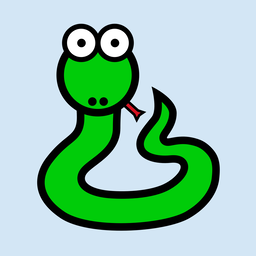
這個資料夾裡有很多圖示,但大多數看起來都一樣:淺藍色背景上有一條綠色的蛇:
 。
。
唯一的例外是名稱中含有 -adaptive- 的圖示;這些圖示將會有透明背景。這代表在 Briefcase
支援的每個平台上支援應用程式所需的所有不同圖示尺寸和形狀。
現在有了圖示,我們可以再次更新應用程式。然而,briefcase update
只會將更新的資源複製到建立目錄中;我們還要重建應用程式,以確保包含新的圖示,然後啟動應用程式。我們可以在呼叫 run 時傳入
--update-resources 來縮短這個過程 - 這會更新應用程式、更新應用程式的資源,然後啟動應用程式:
(beeware-venv) $ briefcase run --update-resources

[helloworld] Updating application code...
Installing src/helloworld... done

[helloworld] Updating application resources...
Installing icons/helloworld.icns as application icon... done

[helloworld] Removing unneeded app content...
Removing unneeded app bundle content... done

[helloworld] Application updated.

[helloworld] Ad-hoc signing app...
     ━━━━━━━━━━━━━━━━━━━━━━━━━━━━━━━━━━━━━━━━━━━━━━━━━━ 100.0% • 00:01

[helloworld] Built build/helloworld/macos/app/Hello World.app

[helloworld] Starting app...
(beeware-venv) $ briefcase run --update-resources

[helloworld] Updating application code...
Installing src/helloworld... done

[helloworld] Updating application resources...
Installing icons/helloworld-16.png as 16px application icon... done
Installing icons/helloworld-32.png as 32px application icon... done
Installing icons/helloworld-64.png as 64px application icon... done
Installing icons/helloworld-128.png as 128px application icon... done
Installing icons/helloworld-256.png as 256px application icon... done
Installing icons/helloworld-512.png as 512px application icon... done

[helloworld] Removing unneeded app content...
Removing unneeded app bundle content... done

[helloworld] Application updated.

[helloworld] Building application...
Build bootstrap binary...
...

[helloworld] Built build/helloworld/linux/ubuntu/jammy/helloworld-0.0.1/usr/bin/helloworld

[helloworld] Starting app...
(beeware-venv) C:\...>briefcase build --update-resources

[helloworld] Updating application code...
Installing src/helloworld... done

[helloworld] Updating application resources...
Installing icons/helloworld.ico as application icon... done

[helloworld] Removing unneeded app content...
Removing unneeded app bundle content... done

[helloworld] Application updated.

[helloworld] Building App...
Removing any digital signatures from stub app... done
Setting stub app details... done

[helloworld] Built build\helloworld\windows\app\src\Hello World.exe

[helloworld] Starting app...
(beeware-venv) $ briefcase build android --update-resources

[helloworld] Updating application code...
Installing src/helloworld... done

[helloworld] Updating application resources...
Installing icons/helloworld-round-48.png as 48px round application icon... done
Installing icons/helloworld-round-72.png as 72px round application icon... done
Installing icons/helloworld-round-96.png as 96px round application icon... done
Installing icons/helloworld-round-144.png as 144px round application icon... done
Installing icons/helloworld-round-192.png as 192px round application icon... done
Installing icons/helloworld-square-48.png as 48px square application icon... done
Installing icons/helloworld-square-72.png as 72px square application icon... done
Installing icons/helloworld-square-96.png as 96px square application icon... done
Installing icons/helloworld-square-144.png as 144px square application icon... done
Installing icons/helloworld-square-192.png as 192px square application icon... done
Installing icons/helloworld-square-320.png as 320px square application icon... done
Installing icons/helloworld-square-480.png as 480px square application icon... done
Installing icons/helloworld-square-640.png as 640px square application icon... done
Installing icons/helloworld-square-960.png as 960px square application icon... done
Installing icons/helloworld-square-1280.png as 1280px square application icon... done
Installing icons/helloworld-adaptive-108.png as 108px adaptive application icon... done
Installing icons/helloworld-adaptive-162.png as 162px adaptive application icon... done
Installing icons/helloworld-adaptive-216.png as 216px adaptive application icon... done
Installing icons/helloworld-adaptive-324.png as 324px adaptive application icon... done
Installing icons/helloworld-adaptive-432.png as 432px adaptive application icon... done

[helloworld] Removing unneeded app content...
Removing unneeded app bundle content... done

[helloworld] Application updated.

[helloworld] Starting app...
注意事項
如果您使用的是最新版本的 Android,您可能會注意到應用程式圖示已改成綠色的蛇形,但圖示的背景是白色,而非淺藍色。我們會在下一步修正這個問題。
(beeware-venv) $ briefcase build iOS --update-resources

[helloworld] Updating application code...
Installing src/helloworld... done

[helloworld] Updating application resources...
Installing icons/helloworld-20.png as 20px application icon... done
Installing icons/helloworld-29.png as 29px application icon... done
Installing icons/helloworld-40.png as 40px application icon... done
Installing icons/helloworld-58.png as 58px application icon... done
Installing icons/helloworld-60.png as 60px application icon... done
Installing icons/helloworld-76.png as 76px application icon... done
Installing icons/helloworld-80.png as 80px application icon... done
Installing icons/helloworld-87.png as 87px application icon... done
Installing icons/helloworld-120.png as 120px application icon... done
Installing icons/helloworld-152.png as 152px application icon... done
Installing icons/helloworld-167.png as 167px application icon... done
Installing icons/helloworld-180.png as 180px application icon... done
Installing icons/helloworld-640.png as 640px application icon... done
Installing icons/helloworld-1024.png as 1024px application icon... done
Installing icons/helloworld-1280.png as 1280px application icon... done
Installing icons/helloworld-1920.png as 1920px application icon... done

[helloworld] Removing unneeded app content...
Removing unneeded app bundle content... done

[helloworld] Application updated.

[helloworld] Starting app...
注意事項
如果您在執行應用程式時收到引用 faker 或 httpx 的堆疊痕跡,可能是您在教程的第 7 或第 8 步遺漏了執行應用程式。重新執行應用程式,加入
-r 參數以更新應用程式需求。
當您在 iOS 或 Android
上執行應用程式時,除了圖示變更之外,您應該也會注意到閃屏加入了新圖示。但是,圖示的淺藍色背景與閃屏的白色背景看起來有點格格不入。我們可以自訂閃屏的背景顏色來解決這個問題。將以下定義加入您的
pyproject.toml,就在 icon` 定義之後:
splash_background_color = "#D3E6F5"
不幸的是,Briefcase 無法將此變更套用至已產生的專案,因為這需要修改在原始呼叫 briefcase create
時產生的其中一個檔案。要套用這個變更,我們必須重新執行 briefcase create
來重新建立應用程式。當我們這樣做時,系統會提示我們確認是否要覆蓋現有的專案:
(beeware-venv) $ briefcase create

Application 'helloworld' already exists; overwrite [y/N]? y

[helloworld] Removing old application bundle...

[helloworld] Generating application template...
...

[helloworld] Created build/helloworld/macos/app
(beeware-venv) $ briefcase create

Application 'helloworld' already exists; overwrite [y/N]? y

[helloworld] Removing old application bundle...

[helloworld] Generating application template...
...

[helloworld] Created build/helloworld/linux/ubuntu/jammy
(beeware-venv) C:\...>briefcase create

Application 'helloworld' already exists; overwrite [y/N]? y

[helloworld] Removing old application bundle...

[helloworld] Generating application template...
...

[helloworld] Created build\helloworld\windows\app
(beeware-venv) $ briefcase create android

Application 'helloworld' already exists; overwrite [y/N]? y

[helloworld] Removing old application bundle...

[helloworld] Generating application template...
...
[helloworld] Created build/helloworld/android/gradle
(beeware-venv) $ briefcase create iOS

Application 'helloworld' already exists; overwrite [y/N]? y

[helloworld] Removing old application bundle...

[helloworld] Generating application template...
...
[helloworld] Created build/helloworld/ios/xcode
然後您可以使用 briefcase run 重新建立並執行應用程式。您不會注意到桌面應用程式有任何改變;但 Android 或 iOS
應用程式現在應該會有淺藍色的閃屏背景。
每當您對 pyproject.toml
做出與原始碼或相依性無關的變更時,都需要像這樣重新建立應用程式。任何對描述、版本號碼、顏色或權限的變更都需要重新建立的步驟。正因如此,當您在開發專案時,不應該手動變更
build 資料夾中的內容,也不應該將 build 資料夾加到您的版本控制系統中。build 資料夾應該被視為完全短暫的 -
是建立系統的輸出,可以在需要時重新建立,以反映專案的目前配置。
新增執行時圖示
當要在應用程式介面上加入圖示時,這類圖示必須與應用程式圖示分開存放在不同的目錄中。右擊 Tiberius the yak,將圖像儲存為 .png
檔案,並命名為 helloworld。然後,該檔案應儲存到應用程式原始碼套件中的 icons/ 資料夾。
牦牛提比略的圖像](../../images/runtime-icon.png)。
您的目錄將如下所示:
beeware-tutorial/
├── beeware-venv/
│   └── ...
└── helloworld/
    ├── ...
    ├── icons/
    │   ├── helloworld.icns
    │   ├── helloworld.ico
    │   ├── helloworld.png
    │   ├── helloworld-16.png
    │   └──...
    ├── src/
    │   ├── helloworld
    │   │   └── icons/
    │   │       └── helloworld.png
    │   └──...
    └── pyproject.toml
現在 runtime 圖示已經就位,讓我們為按鈕加入圖示。Toga 按鈕 widget 只能容納圖示或文字 (不能同時容納),所以讓我們更新按鈕的程式碼,加入執行時的圖示。
helloworld_icon = toga.Icon("icons/helloworld")

button = toga.Button(
    icon=helloworld_icon,
    on_press=self.say_hello,
    margin=5,
)
由於 runtime 圖示是捆綁在 Python 套件內的應用程式資源,所以不需要重建或更新資源。此時您可以執行 briefcase dev (或
briefcase run) 來查看新增到按鈕上的圖示。