Personnalisation des icônes
Jusqu'à présent, notre application utilise l'icône par défaut "abeille grise". Configurons l'application pour qu'elle utilise notre propre icône.
Note
Dans BeeWare, le terme icône peut désigner deux choses différentes :
-
Icône d'application - Image qui représente votre application sur le bureau, le dock ou l'écran d'accueil.
-
Icônes d'exécution - Images utilisées dans l'interface de votre application (par exemple, dans les boutons ou les tableaux).
Ajouter une icône
Chaque plateforme utilise un format différent pour les icônes d'application - et certaines plateformes ont besoin de multiples icônes de tailles et de formes différentes. Pour tenir compte de cela, Briefcase fournit un moyen abrégé de configurer une icône une fois, puis de faire en sorte que cette définition s'étende à toutes les différentes icônes nécessaires pour chaque plate-forme particulière.
Editez votre pyproject.toml, en ajoutant un nouvel élément de configuration
icon dans la section de configuration [tool.briefcase.app.helloworld], juste
au-dessus de la définition sources :
icon = "icons/helloworld"
Cette définition d'icône ne spécifie pas d'extension de fichier. La valeur sera utilisée comme préfixe ; chaque plateforme ajoutera des éléments supplémentaires à ce préfixe pour créer les fichiers nécessaires à chaque plateforme. Certaines plateformes nécessitent plusieurs fichiers d'icônes ; ce préfixe sera combiné avec des modificateurs de taille de fichier et de variante pour générer la liste des fichiers d'icônes utilisés.
Nous pouvons maintenant exécuter briefcase update à nouveau - mais cette fois,
nous passons le drapeau --update-resources, indiquant à Briefcase que nous
voulons installer les nouvelles ressources de l'application (c'est-à-dire les
icônes) :
(beeware-venv) $ briefcase update --update-resources

[helloworld] Updating application code...
Installing src/helloworld... done

[helloworld] Updating application resources...
Unable to find icons/helloworld.icns for application icon; using default

[helloworld] Removing unneeded app content...
Removing unneeded app bundle content... done

[helloworld] Application updated.
(beeware-venv) $ briefcase update --update-resources

[helloworld] Updating application code...
Installing src/helloworld... done

[helloworld] Updating application resources...
Unable to find icons/helloworld-16.png for 16px application icon; using default
Unable to find icons/helloworld-32.png for 32px application icon; using default
Unable to find icons/helloworld-64.png for 64px application icon; using default
Unable to find icons/helloworld-128.png for 128px application icon; using default
Unable to find icons/helloworld-256.png for 256px application icon; using default
Unable to find icons/helloworld-512.png for 512px application icon; using default

[helloworld] Removing unneeded app content...
Removing unneeded app bundle content... done

[helloworld] Application updated.
(beeware-venv) C:\...>briefcase update --update-resources

[helloworld] Updating application code...
Installing src/helloworld... done

[helloworld] Updating application resources...
Unable to find icons/helloworld.ico for application icon; using default

[helloworld] Removing unneeded app content...
Removing unneeded app bundle content... done

[helloworld] Application updated.
(beeware-venv) $ briefcase update android --update-resources

[helloworld] Updating application code...
Installing src/helloworld... done

[helloworld] Updating application resources...
Unable to find icons/helloworld-round-48.png for 48px round application icon; using default
Unable to find icons/helloworld-round-72.png for 72px round application icon; using default
Unable to find icons/helloworld-round-96.png for 96px round application icon; using default
Unable to find icons/helloworld-round-144.png for 144px round application icon; using default
Unable to find icons/helloworld-round-192.png for 192px round application icon; using default
Unable to find icons/helloworld-square-48.png for 48px square application icon; using default
Unable to find icons/helloworld-square-72.png for 72px square application icon; using default
Unable to find icons/helloworld-square-96.png for 96px square application icon; using default
Unable to find icons/helloworld-square-144.png for 144px square application icon; using default
Unable to find icons/helloworld-square-192.png for 192px square application icon; using default
Unable to find icons/helloworld-square-320.png for 320px square application icon; using default
Unable to find icons/helloworld-square-480.png for 480px square application icon; using default
Unable to find icons/helloworld-square-640.png for 640px square application icon; using default
Unable to find icons/helloworld-square-960.png for 960px square application icon; using default
Unable to find icons/helloworld-square-1280.png for 1280px square application icon; using default
Unable to find icons/helloworld-adaptive-108.png for 108px adaptive application icon; using default
Unable to find icons/helloworld-adaptive-162.png for 162px adaptive application icon; using default
Unable to find icons/helloworld-adaptive-216.png for 216px adaptive application icon; using default
Unable to find icons/helloworld-adaptive-324.png for 324px adaptive application icon; using default
Unable to find icons/helloworld-adaptive-432.png for 432px adaptive application icon; using default

[helloworld] Removing unneeded app content...
Removing unneeded app bundle content... done

[helloworld] Application updated.
(beeware-venv) $ briefcase iOS --update-resources

  [helloworld] Updating application code...
  Installing src/helloworld... done

  [helloworld] Updating application resources...
  Unable to find icons/helloworld-20.png for 20px application icon; using default
  Unable to find icons/helloworld-29.png for 29px application icon; using default
  Unable to find icons/helloworld-40.png for 40px application icon; using default
  Unable to find icons/helloworld-58.png for 58px application icon; using default
  Unable to find icons/helloworld-60.png for 60px application icon; using default
  Unable to find icons/helloworld-76.png for 76px application icon; using default
  Unable to find icons/helloworld-80.png for 80px application icon; using default
  Unable to find icons/helloworld-87.png for 87px application icon; using default
  Unable to find icons/helloworld-120.png for 120px application icon; using default
  Unable to find icons/helloworld-152.png for 152px application icon; using default
  Unable to find icons/helloworld-167.png for 167px application icon; using default
  Unable to find icons/helloworld-180.png for 180px application icon; using default
  Unable to find icons/helloworld-640.png for 640px application icon; using default
  Unable to find icons/helloworld-1024.png for 1024px application icon; using default
  Unable to find icons/helloworld-1280.png for 1280px application icon; using default
  Unable to find icons/helloworld-1920.png for 1920px application icon; using default

  [helloworld] Removing unneeded app content...
  Removing unneeded app bundle content... done

  [helloworld] Application updated.
Cela indique le ou les fichiers d'icônes spécifiques que Briefcase attend. Cependant, comme nous n'avons pas fourni les fichiers d'icônes réels, l'installation échoue et Briefcase revient à la valeur par défaut (la même icône "abeille grise").
Fournissons quelques icônes réelles. Téléchargez ce paquet icons.zip, et décompressez-le à la racine de votre répertoire de projet. Après la décompression, votre répertoire de projet devrait ressembler à quelque chose comme :
beeware-tutorial/
├── beeware-venv/
│   └── ...
└── helloworld/
    ├── ...
    ├── icons/
    │   ├── helloworld.icns
    │   ├── helloworld.ico
    │   ├── helloworld.png
    │   ├── helloworld-16.png
    │   └──...
    ├── src/
    │   └── ...
    └── pyproject.toml
Il y a beaucoup d'icônes dans ce dossier, mais la plupart d'entre elles devraient avoir la même apparence : un serpent vert sur un fond bleu clair :
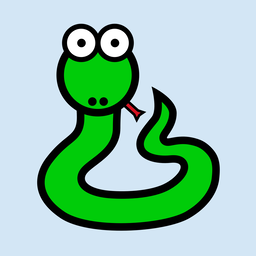
La seule exception sera les icônes avec -adaptive- dans leur nom ; celles-ci
auront un arrière-plan transparent. Cela représente toutes les différentes
tailles et formes d'icônes dont vous avez besoin pour développer une application
sur toutes les plateformes supportées par Briefcase.
Maintenant que nous avons les icônes, nous pouvons à nouveau mettre à jour
l'application. Cependant, briefcase update ne fera que copier les ressources
mises à jour dans le répertoire de construction ; nous voulons aussi
reconstruire l'application pour nous assurer que la nouvelle icône est incluse,
puis démarrer l'application. Nous pouvons raccourcir ce processus en passant
--update-resources à notre appel à run - cela mettra à jour l'application,
mettra à jour les ressources de l'application, et ensuite démarrera
l'application :
(beeware-venv) $ briefcase run --update-resources

[helloworld] Updating application code...
Installing src/helloworld... done

[helloworld] Updating application resources...
Installing icons/helloworld.icns as application icon... done

[helloworld] Removing unneeded app content...
Removing unneeded app bundle content... done

[helloworld] Application updated.

[helloworld] Ad-hoc signing app...
     ━━━━━━━━━━━━━━━━━━━━━━━━━━━━━━━━━━━━━━━━━━━━━━━━━━ 100.0% • 00:01

[helloworld] Built build/helloworld/macos/app/Hello World.app

[helloworld] Starting app...
(beeware-venv) $ briefcase run --update-resources

[helloworld] Updating application code...
Installing src/helloworld... done

[helloworld] Updating application resources...
Installing icons/helloworld-16.png as 16px application icon... done
Installing icons/helloworld-32.png as 32px application icon... done
Installing icons/helloworld-64.png as 64px application icon... done
Installing icons/helloworld-128.png as 128px application icon... done
Installing icons/helloworld-256.png as 256px application icon... done
Installing icons/helloworld-512.png as 512px application icon... done

[helloworld] Removing unneeded app content...
Removing unneeded app bundle content... done

[helloworld] Application updated.

[helloworld] Building application...
Build bootstrap binary...
...

[helloworld] Built build/helloworld/linux/ubuntu/jammy/helloworld-0.0.1/usr/bin/helloworld

[helloworld] Starting app...
(beeware-venv) C:\...>briefcase build --update-resources

[helloworld] Updating application code...
Installing src/helloworld... done

[helloworld] Updating application resources...
Installing icons/helloworld.ico as application icon... done

[helloworld] Removing unneeded app content...
Removing unneeded app bundle content... done

[helloworld] Application updated.

[helloworld] Building App...
Removing any digital signatures from stub app... done
Setting stub app details... done

[helloworld] Built build\helloworld\windows\app\src\Hello World.exe

[helloworld] Starting app...
(beeware-venv) $ briefcase build android --update-resources

[helloworld] Updating application code...
Installing src/helloworld... done

[helloworld] Updating application resources...
Installing icons/helloworld-round-48.png as 48px round application icon... done
Installing icons/helloworld-round-72.png as 72px round application icon... done
Installing icons/helloworld-round-96.png as 96px round application icon... done
Installing icons/helloworld-round-144.png as 144px round application icon... done
Installing icons/helloworld-round-192.png as 192px round application icon... done
Installing icons/helloworld-square-48.png as 48px square application icon... done
Installing icons/helloworld-square-72.png as 72px square application icon... done
Installing icons/helloworld-square-96.png as 96px square application icon... done
Installing icons/helloworld-square-144.png as 144px square application icon... done
Installing icons/helloworld-square-192.png as 192px square application icon... done
Installing icons/helloworld-square-320.png as 320px square application icon... done
Installing icons/helloworld-square-480.png as 480px square application icon... done
Installing icons/helloworld-square-640.png as 640px square application icon... done
Installing icons/helloworld-square-960.png as 960px square application icon... done
Installing icons/helloworld-square-1280.png as 1280px square application icon... done
Installing icons/helloworld-adaptive-108.png as 108px adaptive application icon... done
Installing icons/helloworld-adaptive-162.png as 162px adaptive application icon... done
Installing icons/helloworld-adaptive-216.png as 216px adaptive application icon... done
Installing icons/helloworld-adaptive-324.png as 324px adaptive application icon... done
Installing icons/helloworld-adaptive-432.png as 432px adaptive application icon... done

[helloworld] Removing unneeded app content...
Removing unneeded app bundle content... done

[helloworld] Application updated.

[helloworld] Starting app...
Note
Si vous utilisez une version récente d'Android, vous remarquerez peut-être que l'icône de l'application a été remplacée par un serpent vert, mais que l'arrière-plan de l'icône est blanc, et non bleu clair. Nous allons corriger cela dans l'étape suivante.
(beeware-venv) $ briefcase build iOS --update-resources

[helloworld] Updating application code...
Installing src/helloworld... done

[helloworld] Updating application resources...
Installing icons/helloworld-20.png as 20px application icon... done
Installing icons/helloworld-29.png as 29px application icon... done
Installing icons/helloworld-40.png as 40px application icon... done
Installing icons/helloworld-58.png as 58px application icon... done
Installing icons/helloworld-60.png as 60px application icon... done
Installing icons/helloworld-76.png as 76px application icon... done
Installing icons/helloworld-80.png as 80px application icon... done
Installing icons/helloworld-87.png as 87px application icon... done
Installing icons/helloworld-120.png as 120px application icon... done
Installing icons/helloworld-152.png as 152px application icon... done
Installing icons/helloworld-167.png as 167px application icon... done
Installing icons/helloworld-180.png as 180px application icon... done
Installing icons/helloworld-640.png as 640px application icon... done
Installing icons/helloworld-1024.png as 1024px application icon... done
Installing icons/helloworld-1280.png as 1280px application icon... done
Installing icons/helloworld-1920.png as 1920px application icon... done

[helloworld] Removing unneeded app content...
Removing unneeded app bundle content... done

[helloworld] Application updated.

[helloworld] Starting app...
Note
Si vous obtenez une trace de pile faisant référence à faker ou httpx lorsque
vous lancez l'application, il est possible que vous n'ayez pas lancé votre
application pendant l'étape 7 ou 8 du tutoriel. Relancez l'application en
ajoutant l'argument -r pour mettre à jour les exigences de l'application.
Lorsque vous exécutez l'application sur iOS ou Android, outre le changement
d'icône, vous devriez également remarquer que l'écran de démarrage intègre la
nouvelle icône. Cependant, l'arrière-plan bleu clair de l'icône semble un peu
déplacé par rapport à l'arrière-plan blanc de l'écran d'accueil. Nous pouvons y
remédier en personnalisant la couleur de fond de l'écran de démarrage. Ajoutez
la définition suivante à votre pyproject.toml, juste après la définition
icon :
splash_background_color = "#D3E6F5"
Malheureusement, Briefcase n'est pas en mesure d'appliquer ce changement à un
projet déjà généré, car il faut modifier l'un des fichiers qui a été généré lors
de l'appel initial à briefcase create. Pour appliquer ce changement, nous
devons recréer l'application en relançant briefcase create. Lorsque nous
faisons cela, on nous demandera de confirmer que nous voulons écraser le projet
existant :
(beeware-venv) $ briefcase create

Application 'helloworld' already exists; overwrite [y/N]? y

[helloworld] Removing old application bundle...

[helloworld] Generating application template...
...

[helloworld] Created build/helloworld/macos/app
(beeware-venv) $ briefcase create

Application 'helloworld' already exists; overwrite [y/N]? y

[helloworld] Removing old application bundle...

[helloworld] Generating application template...
...

[helloworld] Created build/helloworld/linux/ubuntu/jammy
(beeware-venv) C:\...>briefcase create

Application 'helloworld' already exists; overwrite [y/N]? y

[helloworld] Removing old application bundle...

[helloworld] Generating application template...
...

[helloworld] Created build\helloworld\windows\app
(beeware-venv) $ briefcase create android

Application 'helloworld' already exists; overwrite [y/N]? y

[helloworld] Removing old application bundle...

[helloworld] Generating application template...
...
[helloworld] Created build/helloworld/android/gradle
(beeware-venv) $ briefcase create iOS

Application 'helloworld' already exists; overwrite [y/N]? y

[helloworld] Removing old application bundle...

[helloworld] Generating application template...
...
[helloworld] Created build/helloworld/ios/xcode
Vous pouvez alors recompiler et réexécuter l'application en utilisant briefcase
run. Vous ne remarquerez aucun changement dans l'application de bureau, mais
les applications Android ou iOS devraient maintenant avoir un fond d'écran bleu
clair.
Vous devrez recréer l'application de cette façon chaque fois que vous ferez un
changement dans votre pyproject.toml qui ne concerne pas le code source ou les
dépendances. Toute modification des descriptions, des numéros de version, des
couleurs ou des permissions nécessitera une étape de recréation. Pour cette
raison, pendant que vous développez votre projet, vous ne devriez pas faire de
changements manuels au contenu du dossier build, et vous ne devriez pas
ajouter le dossier build à votre système de contrôle de version. Le dossier
build doit être considéré comme entièrement éphémère - un résultat du système
de compilation qui peut être recréé si nécessaire pour refléter la configuration
actuelle de votre projet.
Ajout d'une icône d'exécution
Lorsqu'il s'agit d'ajouter une icône à l'interface de l'application, ce type
d'icône doit être stocké dans un répertoire distinct de celui des icônes de
l'application. Faites un clic droit sur Tibère le yak, sauvegardez cette image
au format .png et nommez-la helloworld. Le fichier doit ensuite être
sauvegardé dans le dossier icons/ du paquet source de votre application.

Votre répertoire ressemblera à ce qui suit :
beeware-tutorial/
├── beeware-venv/
│   └── ...
└── helloworld/
    ├── ...
    ├── icons/
    │   ├── helloworld.icns
    │   ├── helloworld.ico
    │   ├── helloworld.png
    │   ├── helloworld-16.png
    │   └──...
    ├── src/
    │   ├── helloworld
    │   │   └── icons/
    │   │       └── helloworld.png
    │   └──...
    └── pyproject.toml
Maintenant que l'icône d'exécution est en place, ajoutons une icône à notre bouton. Le widget bouton de Toga n'accepte qu'une icône ou du texte (pas les deux), nous allons donc mettre à jour le code du bouton pour inclure l'icône d'exécution.
helloworld_icon = toga.Icon("icons/helloworld")

button = toga.Button(
    icon=helloworld_icon,
    on_press=self.say_hello,
    margin=5,
)
Comme les icônes d'exécution sont des ressources d'application intégrées à votre
paquetage Python, aucune reconstruction ou mise à jour des ressources n'est
nécessaire. A ce stade, vous pouvez lancer briefcase dev (ou briefcase run)
pour voir l'icône ajoutée au bouton.