Symbole anpassen
Die App, die wir im Haupttutorial entwickelt haben, verwendet beim Verpacken standardmäßig das Symbol „gray bee“. Personalisieren wir diese Anwendung, indem wir sie so konfigurieren, dass sie unser eigenes Symbol verwendet.
Hinweis
In BeeWare kann sich der Begriff Icon auf zwei verschiedene Dinge beziehen:
-
Anwendungssymbol - Das Bild, das Ihre Anwendung auf dem Desktop, dem Dock oder dem Startbildschirm darstellt.
-
Laufzeitsymbole - Bilder, die innerhalb der Benutzeroberfläche Ihrer Anwendung verwendet werden (z. B. in Schaltflächen oder Tabellen).
Hinzufügen eines Symbols
Jede Plattform verwendet ein anderes Format für Anwendungssymbole – und einige Plattformen benötigen mehrere Symbole in unterschiedlichen Größen und Formen. Um dies zu berücksichtigen, bietet Briefcase eine Kurzform, mit der Sie ein Symbol einmal konfigurieren und diese Definition dann auf alle verschiedenen Symbole erweitern können, die für jede einzelne Plattform erforderlich sind.
Bearbeiten Sie Ihr pyproject.toml und fügen Sie ein neues
Konfigurationselement Symbol im Konfigurationsabschnitt
[tool.briefcase.app.helloworld] direkt über der Definition von Quellen
hinzu:
icon = "icons/helloworld"
Diese Icon-Definition gibt keine Dateierweiterung an. Der Wert wird als Präfix verwendet; jede Plattform fügt diesem Präfix zusätzliche Elemente hinzu, um die für die jeweilige Plattform erforderlichen Dateien zu erstellen. Einige Plattformen erfordern mehrere Icon-Dateien; dieses Präfix wird mit Dateigröße und Variantenmodifikatoren kombiniert, um die Liste der verwendeten Icon-Dateien zu generieren.
Wir können nun erneut briefcase update ausführen – diesmal jedoch mit dem Flag
--update-resources, um Briefcase mitzuteilen, dass wir neue
Anwendungsressourcen (d. h. die Symbole) installieren möchten:
(beeware-venv) $ briefcase update --update-resources

[helloworld] Updating application code...
Installing src/helloworld... done

[helloworld] Updating application resources...
Unable to find icons/helloworld.icns for application icon; using default

[helloworld] Removing unneeded app content...
Removing unneeded app bundle content... done

[helloworld] Application updated.
(beeware-venv) $ briefcase update --update-resources

[helloworld] Updating application code...
Installing src/helloworld... done

[helloworld] Updating application resources...
Unable to find icons/helloworld-16.png for 16px application icon; using default
Unable to find icons/helloworld-32.png for 32px application icon; using default
Unable to find icons/helloworld-64.png for 64px application icon; using default
Unable to find icons/helloworld-128.png for 128px application icon; using default
Unable to find icons/helloworld-256.png for 256px application icon; using default
Unable to find icons/helloworld-512.png for 512px application icon; using default

[helloworld] Removing unneeded app content...
Removing unneeded app bundle content... done

[helloworld] Application updated.
(beeware-venv) C:\...>briefcase update --update-resources

[helloworld] Updating application code...
Installing src/helloworld... done

[helloworld] Updating application resources...
Unable to find icons/helloworld.ico for application icon; using default

[helloworld] Removing unneeded app content...
Removing unneeded app bundle content... done

[helloworld] Application updated.
(beeware-venv) $ briefcase update android --update-resources

[helloworld] Updating application code...
Installing src/helloworld... done

[helloworld] Updating application resources...
Unable to find icons/helloworld-round-48.png for 48px round application icon; using default
Unable to find icons/helloworld-round-72.png for 72px round application icon; using default
Unable to find icons/helloworld-round-96.png for 96px round application icon; using default
Unable to find icons/helloworld-round-144.png for 144px round application icon; using default
Unable to find icons/helloworld-round-192.png for 192px round application icon; using default
Unable to find icons/helloworld-square-48.png for 48px square application icon; using default
Unable to find icons/helloworld-square-72.png for 72px square application icon; using default
Unable to find icons/helloworld-square-96.png for 96px square application icon; using default
Unable to find icons/helloworld-square-144.png for 144px square application icon; using default
Unable to find icons/helloworld-square-192.png for 192px square application icon; using default
Unable to find icons/helloworld-square-320.png for 320px square application icon; using default
Unable to find icons/helloworld-square-480.png for 480px square application icon; using default
Unable to find icons/helloworld-square-640.png for 640px square application icon; using default
Unable to find icons/helloworld-square-960.png for 960px square application icon; using default
Unable to find icons/helloworld-square-1280.png for 1280px square application icon; using default
Unable to find icons/helloworld-adaptive-108.png for 108px adaptive application icon; using default
Unable to find icons/helloworld-adaptive-162.png for 162px adaptive application icon; using default
Unable to find icons/helloworld-adaptive-216.png for 216px adaptive application icon; using default
Unable to find icons/helloworld-adaptive-324.png for 324px adaptive application icon; using default
Unable to find icons/helloworld-adaptive-432.png for 432px adaptive application icon; using default

[helloworld] Removing unneeded app content...
Removing unneeded app bundle content... done

[helloworld] Application updated.
(beeware-venv) $ briefcase iOS --update-resources

  [helloworld] Updating application code...
  Installing src/helloworld... done

  [helloworld] Updating application resources...
  Unable to find icons/helloworld-20.png for 20px application icon; using default
  Unable to find icons/helloworld-29.png for 29px application icon; using default
  Unable to find icons/helloworld-40.png for 40px application icon; using default
  Unable to find icons/helloworld-58.png for 58px application icon; using default
  Unable to find icons/helloworld-60.png for 60px application icon; using default
  Unable to find icons/helloworld-76.png for 76px application icon; using default
  Unable to find icons/helloworld-80.png for 80px application icon; using default
  Unable to find icons/helloworld-87.png for 87px application icon; using default
  Unable to find icons/helloworld-120.png for 120px application icon; using default
  Unable to find icons/helloworld-152.png for 152px application icon; using default
  Unable to find icons/helloworld-167.png for 167px application icon; using default
  Unable to find icons/helloworld-180.png for 180px application icon; using default
  Unable to find icons/helloworld-640.png for 640px application icon; using default
  Unable to find icons/helloworld-1024.png for 1024px application icon; using default
  Unable to find icons/helloworld-1280.png for 1280px application icon; using default
  Unable to find icons/helloworld-1920.png for 1920px application icon; using default

  [helloworld] Removing unneeded app content...
  Removing unneeded app bundle content... done

  [helloworld] Application updated.
Dies gibt die spezifische(n) Icon-Datei(en) an, die Briefcase erwartet. Da wir jedoch keine tatsächlichen Icon-Dateien bereitgestellt haben, schlägt die Installation fehl und Briefcase greift auf einen Standardwert zurück (das gleiche „graue Bienen”-Icon).
Lassen Sie uns einige aktuelle Symbole bereitstellen. Laden Sie dieses icons.zip-Paket herunter, und entpacken Sie es in das Stammverzeichnis Ihres Projekts. Nach dem Entpacken sollte Ihr Projektverzeichnis etwa so aussehen:
beeware-tutorial/
├── beeware-venv/
│   └── ...
└── helloworld/
    ├── ...
    ├── icons/
    │   ├── helloworld.icns
    │   ├── helloworld.ico
    │   ├── helloworld.png
    │   ├── helloworld-16.png
    │   └──...
    ├── src/
    │   └── ...
    └── pyproject.toml
In diesem Ordner befinden sich sehr viele Symbole, aber die meisten davon sollten gleich aussehen: eine grüne Schlange auf hellblauem Hintergrund:
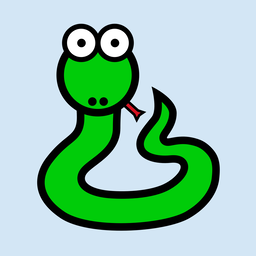
Die einzige Ausnahme bilden die Symbole mit '-adaptive-' im Namen; diese haben einen transparenten Hintergrund. Dies umfasst alle verschiedenen Symbolgrößen und -formen, die Sie benötigen, um eine App auf jeder von Briefcase unterstützten Plattform zu unterstützen.
Jetzt, da wir über Symbole verfügen, können wir die Anwendung erneut
aktualisieren. Allerdings kopiert briefcase update nur die aktualisierten
Ressourcen in das Build-Verzeichnis. Wir möchten jedoch auch die Anwendung neu
erstellen, um sicherzustellen, dass das neue Symbol enthalten ist, und dann die
Anwendung starten. Wir können diesen Vorgang abkürzen, indem wir
--update-resources an unseren Aufruf von run übergeben. Dadurch wird die
Anwendung aktualisiert, die Ressourcen der Anwendung aktualisiert und
anschließend die Anwendung gestartet:
(beeware-venv) $ briefcase run --update-resources

[helloworld] Updating application code...
Installing src/helloworld... done

[helloworld] Updating application resources...
Installing icons/helloworld.icns as application icon... done

[helloworld] Removing unneeded app content...
Removing unneeded app bundle content... done

[helloworld] Application updated.

[helloworld] Ad-hoc signing app...
     ━━━━━━━━━━━━━━━━━━━━━━━━━━━━━━━━━━━━━━━━━━━━━━━━━━ 100.0% • 00:01

[helloworld] Built build/helloworld/macos/app/Hello World.app

[helloworld] Starting app...
(beeware-venv) $ briefcase run --update-resources

[helloworld] Updating application code...
Installing src/helloworld... done

[helloworld] Updating application resources...
Installing icons/helloworld-16.png as 16px application icon... done
Installing icons/helloworld-32.png as 32px application icon... done
Installing icons/helloworld-64.png as 64px application icon... done
Installing icons/helloworld-128.png as 128px application icon... done
Installing icons/helloworld-256.png as 256px application icon... done
Installing icons/helloworld-512.png as 512px application icon... done

[helloworld] Removing unneeded app content...
Removing unneeded app bundle content... done

[helloworld] Application updated.

[helloworld] Building application...
Build bootstrap binary...
...

[helloworld] Built build/helloworld/linux/ubuntu/jammy/helloworld-0.0.1/usr/bin/helloworld

[helloworld] Starting app...
(beeware-venv) C:\...>briefcase build --update-resources

[helloworld] Updating application code...
Installing src/helloworld... done

[helloworld] Updating application resources...
Installing icons/helloworld.ico as application icon... done

[helloworld] Removing unneeded app content...
Removing unneeded app bundle content... done

[helloworld] Application updated.

[helloworld] Building App...
Removing any digital signatures from stub app... done
Setting stub app details... done

[helloworld] Built build\helloworld\windows\app\src\Hello World.exe

[helloworld] Starting app...
(beeware-venv) $ briefcase build android --update-resources

[helloworld] Updating application code...
Installing src/helloworld... done

[helloworld] Updating application resources...
Installing icons/helloworld-round-48.png as 48px round application icon... done
Installing icons/helloworld-round-72.png as 72px round application icon... done
Installing icons/helloworld-round-96.png as 96px round application icon... done
Installing icons/helloworld-round-144.png as 144px round application icon... done
Installing icons/helloworld-round-192.png as 192px round application icon... done
Installing icons/helloworld-square-48.png as 48px square application icon... done
Installing icons/helloworld-square-72.png as 72px square application icon... done
Installing icons/helloworld-square-96.png as 96px square application icon... done
Installing icons/helloworld-square-144.png as 144px square application icon... done
Installing icons/helloworld-square-192.png as 192px square application icon... done
Installing icons/helloworld-square-320.png as 320px square application icon... done
Installing icons/helloworld-square-480.png as 480px square application icon... done
Installing icons/helloworld-square-640.png as 640px square application icon... done
Installing icons/helloworld-square-960.png as 960px square application icon... done
Installing icons/helloworld-square-1280.png as 1280px square application icon... done
Installing icons/helloworld-adaptive-108.png as 108px adaptive application icon... done
Installing icons/helloworld-adaptive-162.png as 162px adaptive application icon... done
Installing icons/helloworld-adaptive-216.png as 216px adaptive application icon... done
Installing icons/helloworld-adaptive-324.png as 324px adaptive application icon... done
Installing icons/helloworld-adaptive-432.png as 432px adaptive application icon... done

[helloworld] Removing unneeded app content...
Removing unneeded app bundle content... done

[helloworld] Application updated.

[helloworld] Starting app...
Hinweis
Wenn Sie eine aktuelle Version von Android verwenden, werden Sie möglicherweise feststellen, dass das App-Symbol zu einer grünen Schlange geändert wurde, der Hintergrund des Symbols jedoch weiß statt hellblau ist. Wir werden dies im nächsten Schritt beheben.
(beeware-venv) $ briefcase build iOS --update-resources

[helloworld] Updating application code...
Installing src/helloworld... done

[helloworld] Updating application resources...
Installing icons/helloworld-20.png as 20px application icon... done
Installing icons/helloworld-29.png as 29px application icon... done
Installing icons/helloworld-40.png as 40px application icon... done
Installing icons/helloworld-58.png as 58px application icon... done
Installing icons/helloworld-60.png as 60px application icon... done
Installing icons/helloworld-76.png as 76px application icon... done
Installing icons/helloworld-80.png as 80px application icon... done
Installing icons/helloworld-87.png as 87px application icon... done
Installing icons/helloworld-120.png as 120px application icon... done
Installing icons/helloworld-152.png as 152px application icon... done
Installing icons/helloworld-167.png as 167px application icon... done
Installing icons/helloworld-180.png as 180px application icon... done
Installing icons/helloworld-640.png as 640px application icon... done
Installing icons/helloworld-1024.png as 1024px application icon... done
Installing icons/helloworld-1280.png as 1280px application icon... done
Installing icons/helloworld-1920.png as 1920px application icon... done

[helloworld] Removing unneeded app content...
Removing unneeded app bundle content... done

[helloworld] Application updated.

[helloworld] Starting app...
Hinweis
Wenn Sie beim Ausführen der App einen Stacktrace erhalten, der auf faker oder
httpx verweist, haben Sie möglicherweise Schritt 7 oder 8 des Tutorials
übersprungen. Führen Sie die App erneut aus und fügen Sie das Argument -r
hinzu, um die App-Anforderungen zu aktualisieren.
Wenn Sie die App auf iOS oder Android ausführen, sollten Sie neben der Änderung
des Symbols auch feststellen, dass das neue Symbol in den Begrüßungsbildschirm
integriert ist. Allerdings wirkt der hellblaue Hintergrund des Symbols vor dem
weißen Hintergrund des Begrüßungsbildschirms etwas deplatziert. Wir können dies
beheben, indem wir die Hintergrundfarbe des Begrüßungsbildschirms anpassen.
Fügen Sie die folgende Definition zu Ihrer pyproject.toml hinzu, direkt nach
der Definition icon:
splash_background_color = "#D3E6F5"
Leider kann Briefcase diese Änderung nicht auf ein bereits generiertes Projekt
anwenden, da dafür Änderungen an einer der Dateien vorgenommen werden müssen,
die beim ursprünglichen Aufruf von briefcase create generiert wurden. Um diese
Änderung anzuwenden, müssen wir die App neu erstellen, indem wir briefcase
create erneut ausführen. Dabei werden wir aufgefordert, zu bestätigen, dass wir
das vorhandene Projekt überschreiben möchten:
(beeware-venv) $ briefcase create

Application 'helloworld' already exists; overwrite [y/N]? y

[helloworld] Removing old application bundle...

[helloworld] Generating application template...
...

[helloworld] Created build/helloworld/macos/app
(beeware-venv) $ briefcase create

Application 'helloworld' already exists; overwrite [y/N]? y

[helloworld] Removing old application bundle...

[helloworld] Generating application template...
...

[helloworld] Created build/helloworld/linux/ubuntu/jammy
(beeware-venv) C:\...>briefcase create

Application 'helloworld' already exists; overwrite [y/N]? y

[helloworld] Removing old application bundle...

[helloworld] Generating application template...
...

[helloworld] Created build\helloworld\windows\app
(beeware-venv) $ briefcase create android

Application 'helloworld' already exists; overwrite [y/N]? y

[helloworld] Removing old application bundle...

[helloworld] Generating application template...
...
[helloworld] Created build/helloworld/android/gradle
(beeware-venv) $ briefcase create iOS

Application 'helloworld' already exists; overwrite [y/N]? y

[helloworld] Removing old application bundle...

[helloworld] Generating application template...
...
[helloworld] Created build/helloworld/ios/xcode
Sie können die App dann mit briefcase run neu erstellen und erneut ausführen.
An der Desktop-App werden Sie keine Änderungen bemerken, aber die Android- oder
iOS-Apps sollten nun einen hellblauen Hintergrund für den Begrüßungsbildschirm
haben.
Sie müssen die App jedes Mal neu erstellen, wenn Sie Änderungen an Ihrer
pyproject.toml vornehmen, die nicht den Quellcode oder die Abhängigkeiten
betreffen. Jede Änderung an Beschreibungen, Versionsnummern, Farben oder
Berechtigungen erfordert einen Neuanlegungsvorgang. Aus diesem Grund sollten Sie
während der Entwicklung Ihres Projekts keine manuellen Änderungen am Inhalt des
Ordners build vornehmen und den Ordner build nicht zu Ihrem
Versionskontrollsystem hinzufügen. Der Ordner build sollte als vollständig
vergänglich betrachtet werden – als Ausgabe des Build-Systems, die bei Bedarf
neu erstellt werden kann, um die aktuelle Konfiguration Ihres Projekts
widerzuspiegeln.
Hinzufügen eines Laufzeitsymbols
Wenn Sie der Benutzeroberfläche der Anwendung ein Symbol hinzufügen möchten,
muss diese Art von Symbol in einem anderen Verzeichnis als die Anwendungssymbole
gespeichert werden. Klicken Sie mit der rechten Maustaste auf Tiberius den Yak,
speichern Sie das Bild als .png-Datei und nennen Sie es helloworld. Die
Datei sollte dann im Ordner "icons/" in Ihrem Quellpaket der Anwendung
gespeichert werden.

Ihr Verzeichnis wird wie folgt aussehen:
beeware-tutorial/
├── beeware-venv/
│   └── ...
└── helloworld/
    ├── ...
    ├── icons/
    │   ├── helloworld.icns
    │   ├── helloworld.ico
    │   ├── helloworld.png
    │   ├── helloworld-16.png
    │   └──...
    ├── src/
    │   ├── helloworld
    │   │   └── icons/
    │   │       └── helloworld.png
    │   └──...
    └── pyproject.toml
Nun, da das Laufzeitsymbol vorhanden ist, fügen wir ein Symbol zu unserer Schaltfläche hinzu. Das Toga-Schaltflächen-Widget kann nur entweder ein Symbol oder einen Text aufnehmen (nicht beides), also aktualisieren wir den Code für die Schaltfläche, um das Laufzeitsymbol aufzunehmen.
helloworld_icon = toga.Icon("icons/helloworld")

button = toga.Button(
    icon=helloworld_icon,
    on_press=self.say_hello,
    margin=5,
)
Da es sich bei den Laufzeitsymbolen um Anwendungsressourcen handelt, die in
Ihrem Python-Paket gebündelt sind, ist kein Rebuild oder eine Aktualisierung der
Ressourcen erforderlich. An diesem Punkt können Sie briefcase dev (oder
briefcase run) ausführen, um das der Schaltfläche hinzugefügte Symbol zu
sehen.